Sheru Bhai AI Video
A Sheru Bhai AI video is a short clip made by animating a still Sheru Bhai photo with an image-to-video model. The video version became its own trend on Instagram Reels and YouTube Shorts, so it is worth making as a separate post rather than reusing the still image.
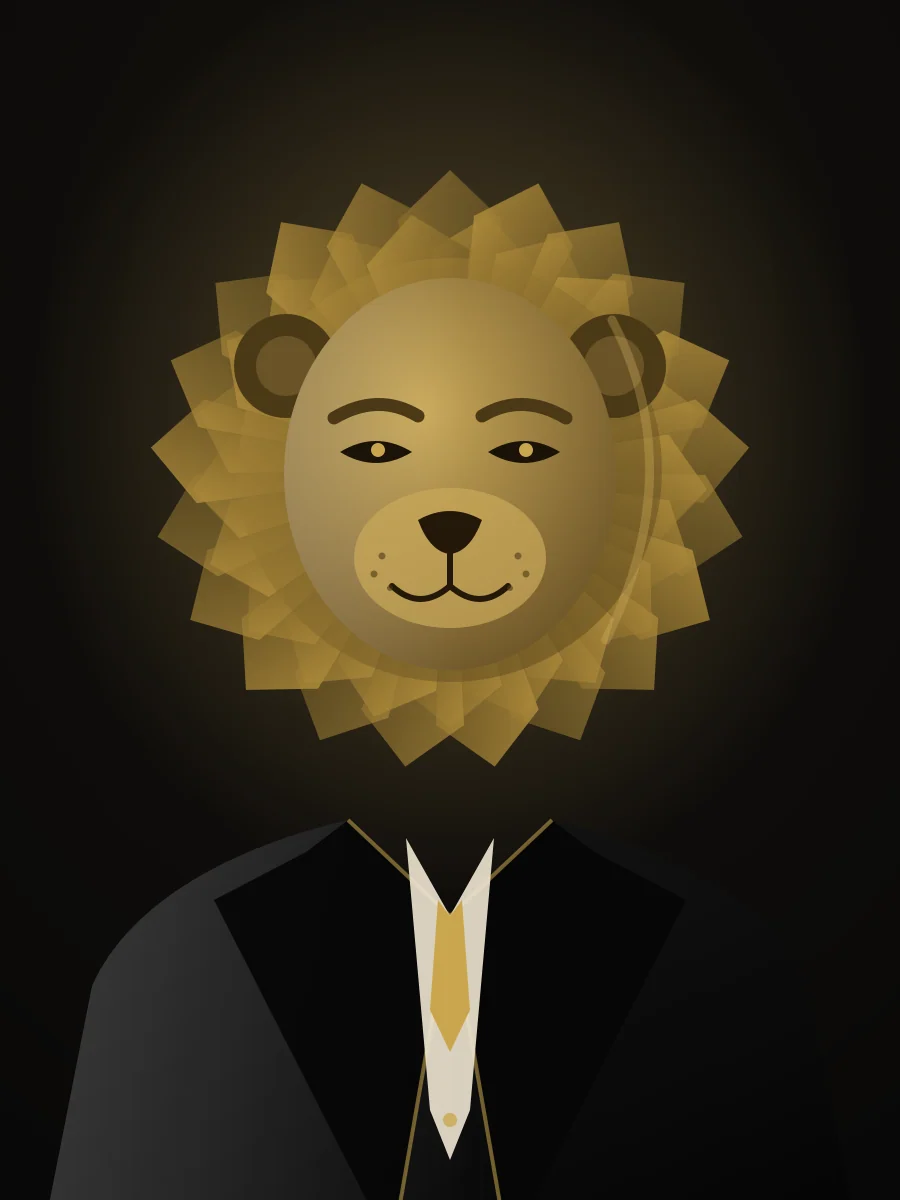
Step by step
- 1
Make the still
Generate a clean 3:4 Sheru Bhai photo from your selfie.
- 2
Use it as the first frame
Attach the still to an image-to-video tool as the starting frame.
- 3
Describe one motion
Paste a single short movement prompt — no camera list, no scene changes.
- 4
Export and post
Render 1080×1920, add audio in your editor, and use the still as the cover.
How the video version differs from the photo
The photo is about the look: suit, mane, light. The video is about a single moment of movement — a slow turn toward camera, a subtle head tilt, or the character settling into a chair while the light shifts. Clips of 5 to 8 seconds perform best; longer clips tend to drift and distort the face.
Prepare the still image first
Start from a clean 3:4 portrait with the whole head and shoulders visible and nothing cut off at the edges. Image-to-video models move whatever is in frame, so a tight crop or a cut-off mane produces visible warping. Do not add captions, logos or stickers before animating — add those in your editor afterwards.
Export settings for Reels and Shorts
Export 1080×1920 at 24 or 30 fps, 5 to 8 seconds, H.264 MP4. Keep the subject in the middle 80% of the frame so platform UI does not cover the face. Add your audio in the editor, not in the generation prompt.
- Resolution: 1080 × 1920, vertical 9:16.
- Length: 5–8 seconds. One motion, not several.
- Format: MP4 / H.264, under 30 MB for easy sharing on slow connections.
- Cover frame: use the original still photo as the thumbnail.
A workflow that actually works
Generate the still photo here first. Then open any image-to-video tool, attach the still as the first frame, paste a short motion prompt and render. Finally add music and a caption in your editor. Trying to do everything in one generation is the most common reason the face melts.
Copy-paste prompts
Written in plain English so they work in any image-to-image tool.
Image-to-video motion prompt
Using the attached image as the first frame: the character slowly turns their head toward the camera and settles their shoulders, a subtle confident half-smile, warm chandelier light shifting gently across the mane, faint dust particles in the air. Smooth continuous motion, no camera cut, no zoom, no new characters, no scene change, no text, no logos. 5 seconds, 9:16 vertical.
Tip: One motion only. Adding “then he stands up and walks” is what breaks the face.
Frequently asked questions
Can I make a Sheru Bhai AI video directly on this site?+
This site generates the still photo used as the first frame. Animate that image in any image-to-video tool with the prompt above — it keeps the workflow simpler and the face more stable.
How long should a Sheru Bhai AI video be?+
Five to eight seconds. Short clips keep the face consistent and loop naturally on Reels and Shorts.
Why does the face change in my video?+
Usually the prompt asks for several actions, or the source still has a tight crop. Use one motion and leave space around the head.
Related guides
About this trend and our artwork
This is a fan-made tool inspired by a viral AI character trend. We are not the original creator and we are not an official site. We do not host or offer downloads of anyone else’s original artwork.
Every lion character shown here is an original illustration or an AI render made from a prompt we wrote ourselves. No logos, brand names, watermarks of third parties or readable text are used in the generated images.
Your uploaded selfie is used only to produce your image. Photo files expire after 24 hours and are removed by server cleanup on subsequent requests. They are never published or used for training. See our Privacy Policy for details.